Get Started
Looma description
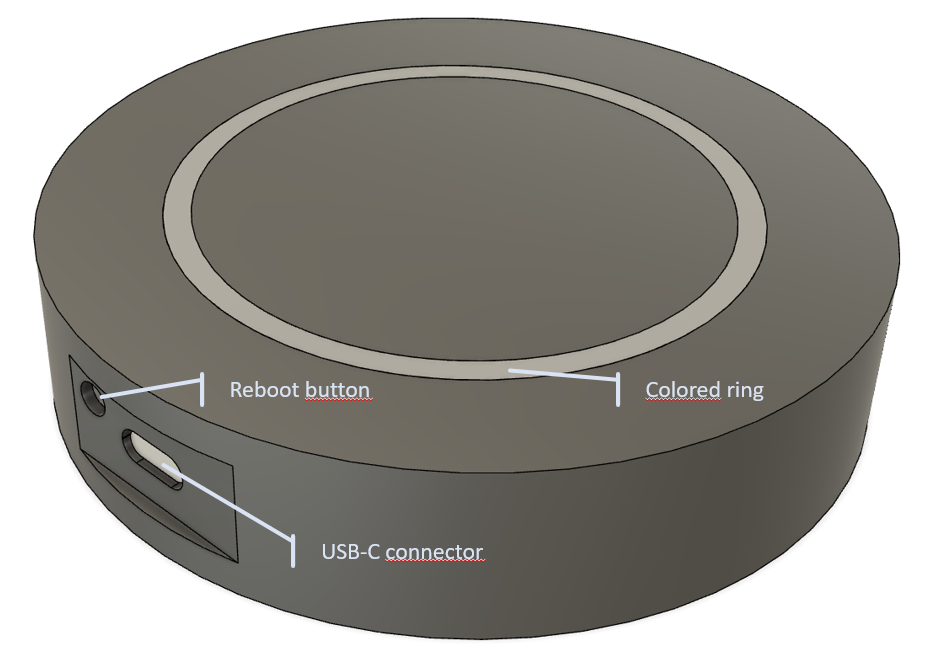
Looma is very simple to use. Only one button and one USB-C power supply connector.
With the button you can by pressing : #. and releasing it, reboot Looma #. and releasing it between 5 and 10 seconds, reboot Looma to factory with WiFi credentials preserved #. and releasing it after 10 seconds, reboot Looma to factory defaults with configuration erased.
Looma first light
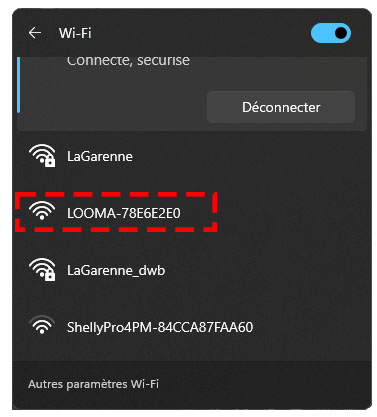
When you connect Looma for the first time, Looma is waiting for Wf-Fi credentials. Once connected with a power supply through the USB-C port, Looma will boot in Access Point Mode (AP Mode). In this Mode, Looma broadcasts its own Wi-Fi network with type LOOMA-XXXXXXX as shown below. The colored ring is lighting with beautiful rainbow colors.
Now, you have to connect your mobile, tablet or computer to this network and go to http://192.168.4.1/ with your favorite browser. Great ! You should be able to see the page below. You can type the SSID and the password of your network and also give an additionnal fallback Wi-Fi network. If the main network becomes unavailble, Looma will try to connect to the second network.
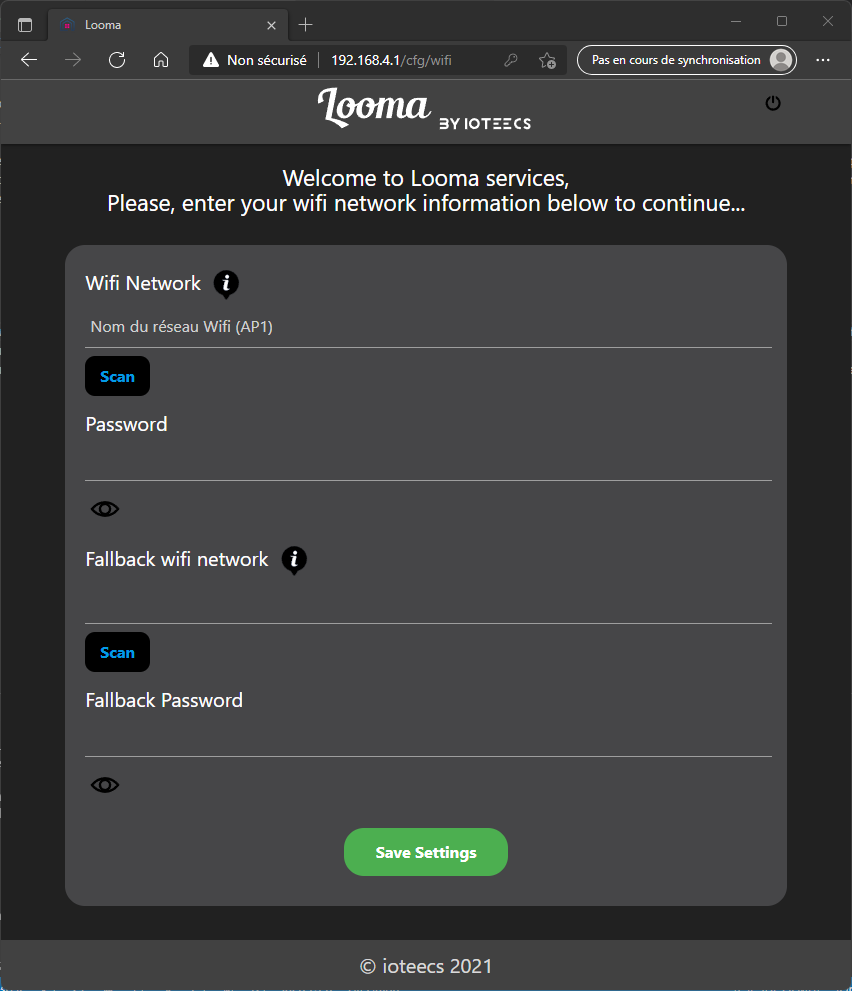
Once credentials has been saved, Looma restarts and try to connect to the main Wi-Fi network (or Wi-Fi fallback network if main Wi-Fi is unavailable).
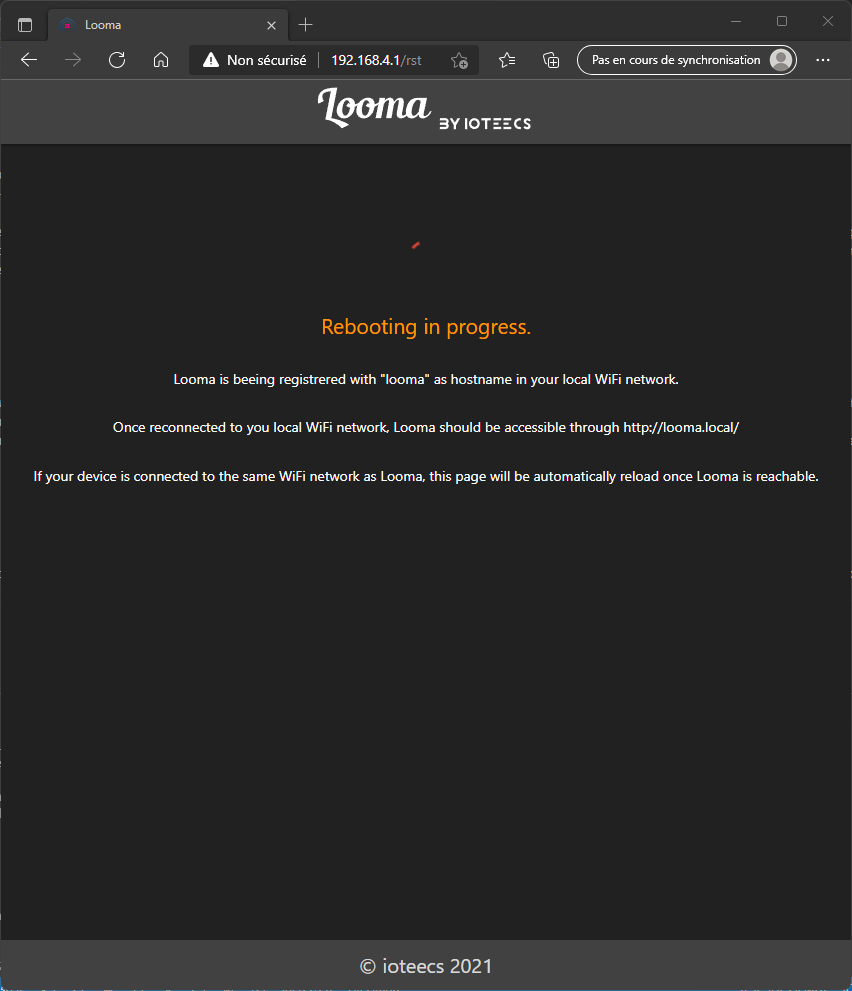
If success, the page will automatically be reloaded to Looma Home page
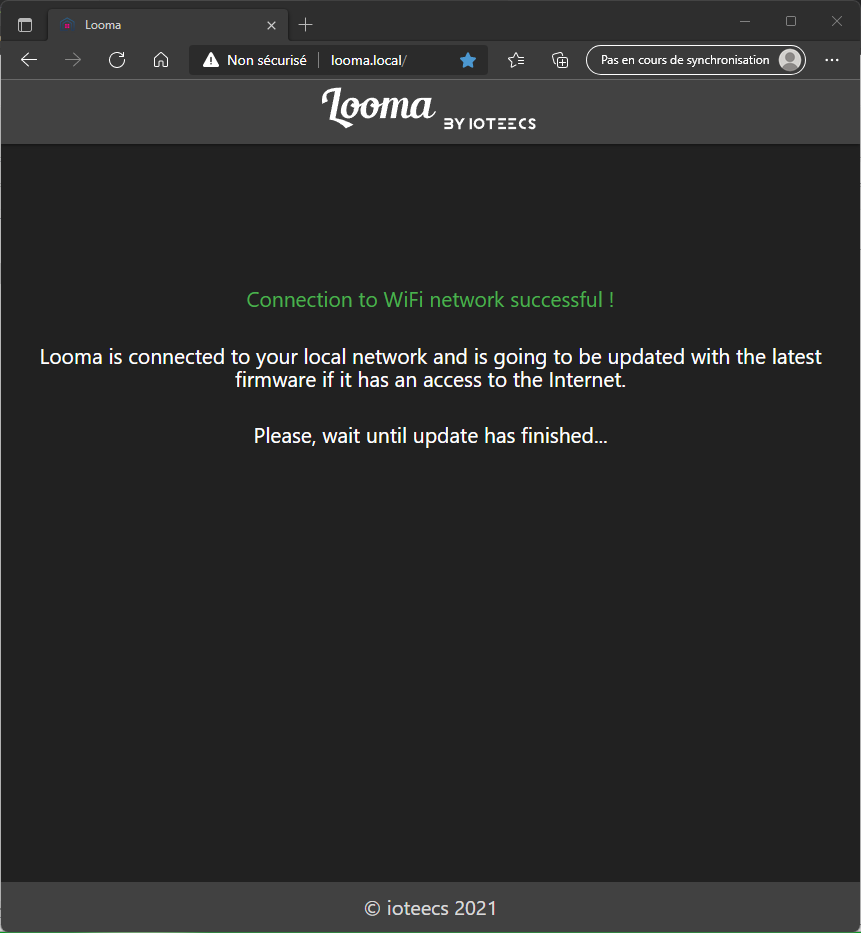
Looma download the latest firmware. Be patient, this could take a long time. You’ll see purple spinner or blue fade in and out ring during the update. Looma may restart several times during the update process.
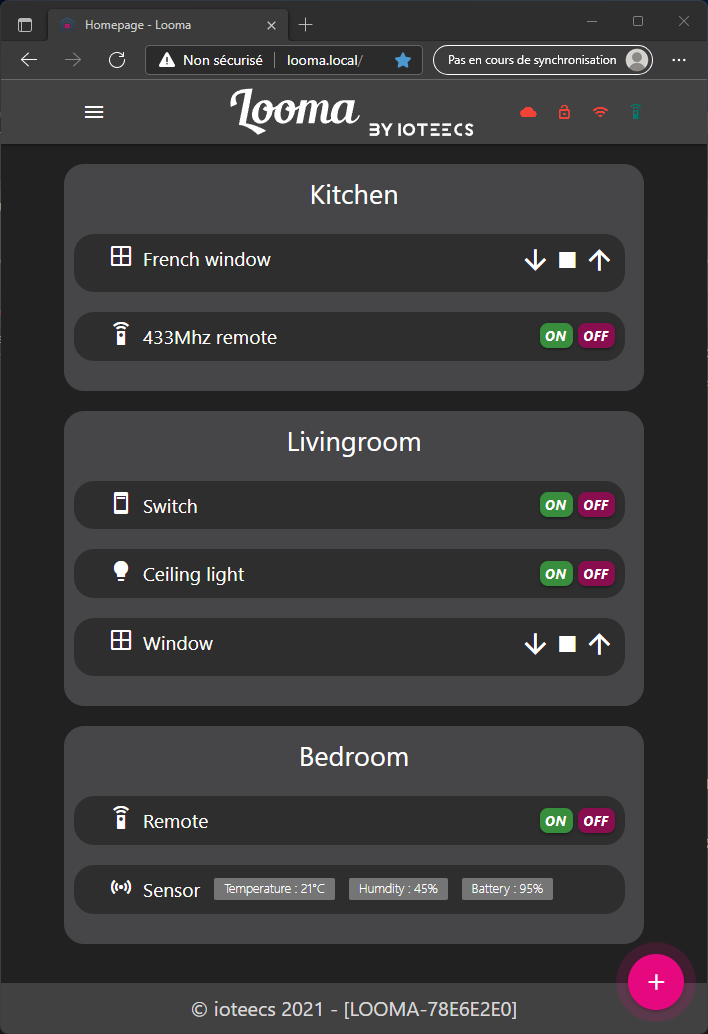
Once Looma has been update, the colored ring should be off after having blinking three times in green. The displayed page looks like the screen capture below.